
Importing Worlds
After you have exported your world data as a JSON file, you can then easily import it back from the same page in your profile settings:
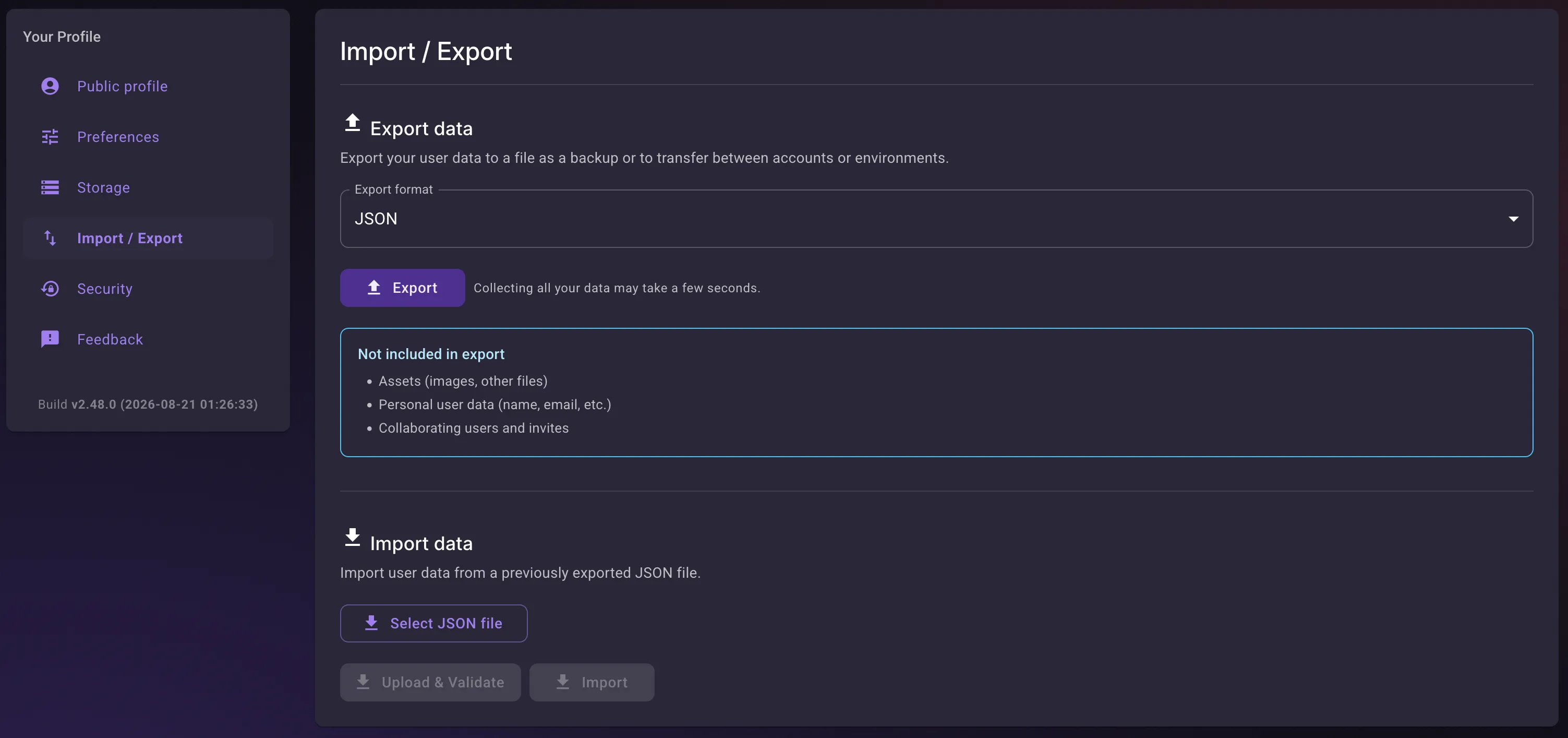
To import your data, click “Select JSON file” and then “Upload & Validate”. At this point, no data is imported. Your data file is uploaded to the server and validated. You should see the “Data validated successfully” message:
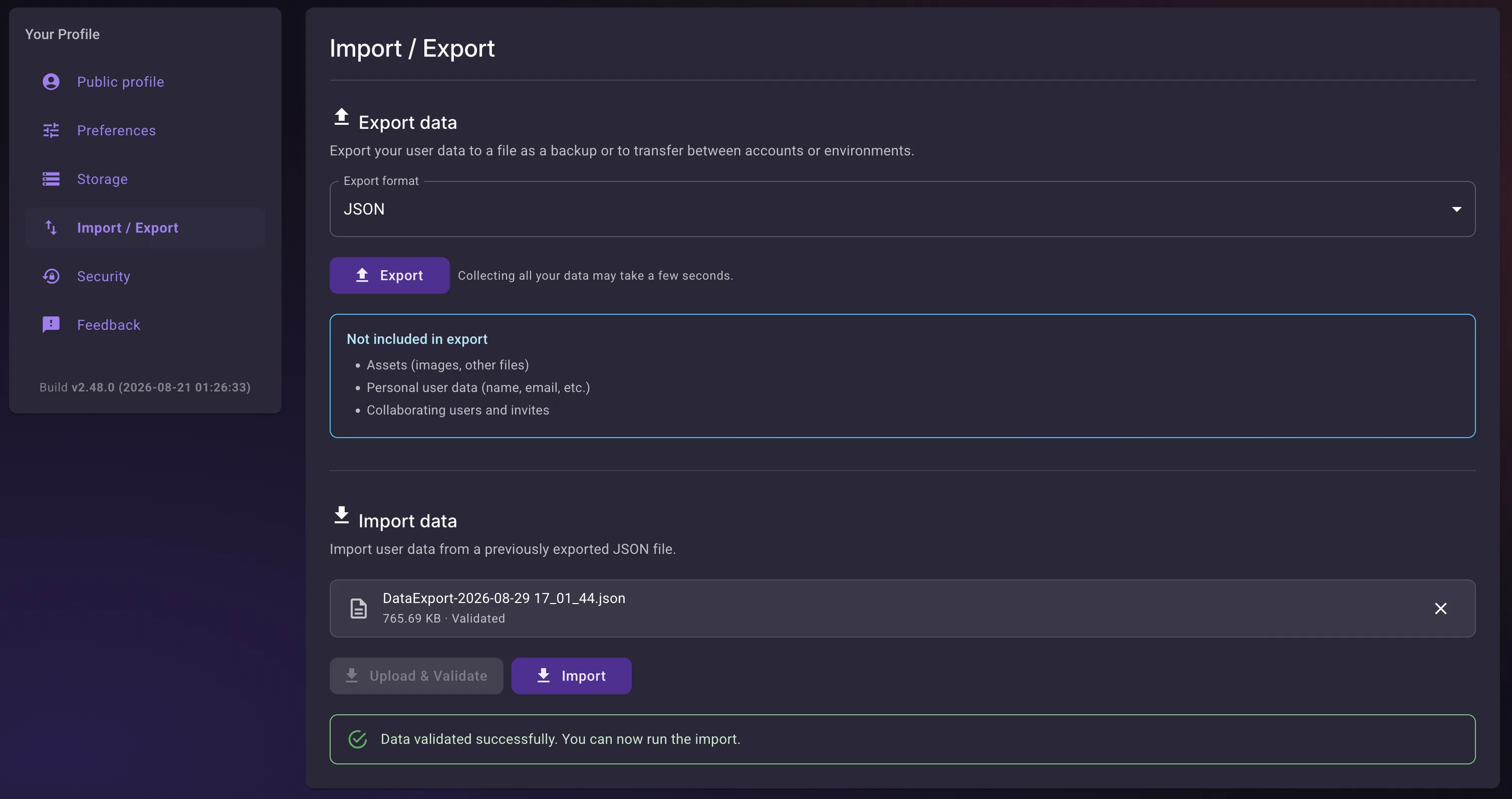
At this point, pressing “Import” will import the data from the provided JSON, overwriting any worlds with the same ID. This allows you to replace your current data with the imported worlds and calendars. Any other worlds or calendars not present in the imported JSON will remain unchanged.
Import Errors
Section titled “Import Errors”You may encounter an error while importing your data.
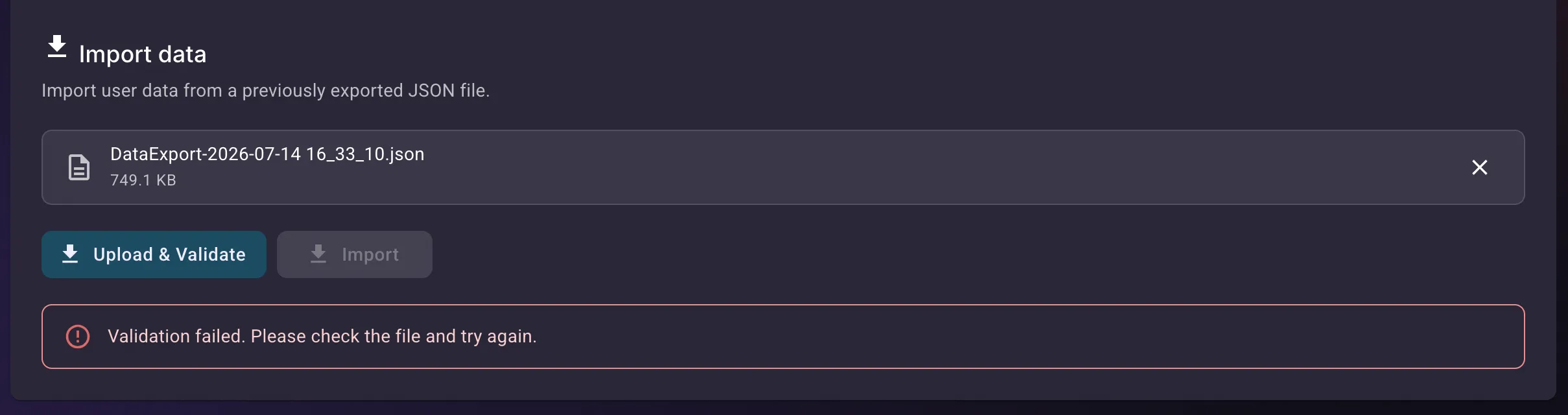
Unless you have tampered with the JSON in some way, this most likely indicates that you’re importing an older data version. Currently, it’s only possible to import the JSON of the same version as was used to export it. The JSON format doesn’t change often, but this problem will be solved soon.