Navigation
Basic navigation in Neverkin is handled through two primary components: the navigator and the sidebar.
Top navigator
Section titled “Top navigator”The navigator is a floating panel at the top of your screen that provides you access to different features in the global scope.

Listing the controls from left to right:
- Worlds hamburger dropdown - a quick way to switch between worlds.
- World button - returns you to the last opened world.
- Home button - returns you to the home page. Clicking the arrow gives you more options.
- Tools - a selection of totally random tools that may or may not be useful.
- Docs (not pictured) - these very pages!
- Admin (only for admin users) - administration tools.
On the right side, you can see:
- Dark mode toggle - switches between light and dark mode.
- Notification bell - that’s where you get occasional notifications.
- User account dropdown - clicking here allows you to access your profile and user settings.
World sidebar
Section titled “World sidebar”The sidebar is a panel visible while inside a world. Here you can switch between different views and main features of the app.
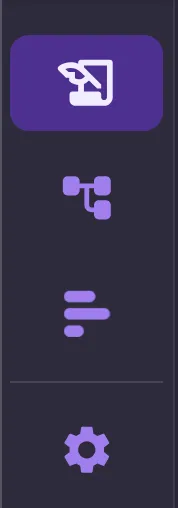
Listing your options top-to-bottom:
- Wiki - where you can do most of your writing
- Mindmap - a place to visualize your ideas (or make some cool charts)
- Timeline - a chronological view of your events
- World settings - a little view to handle world-related stuff, like changing the name or sending out invites.